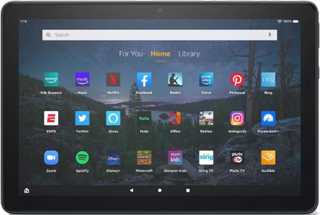
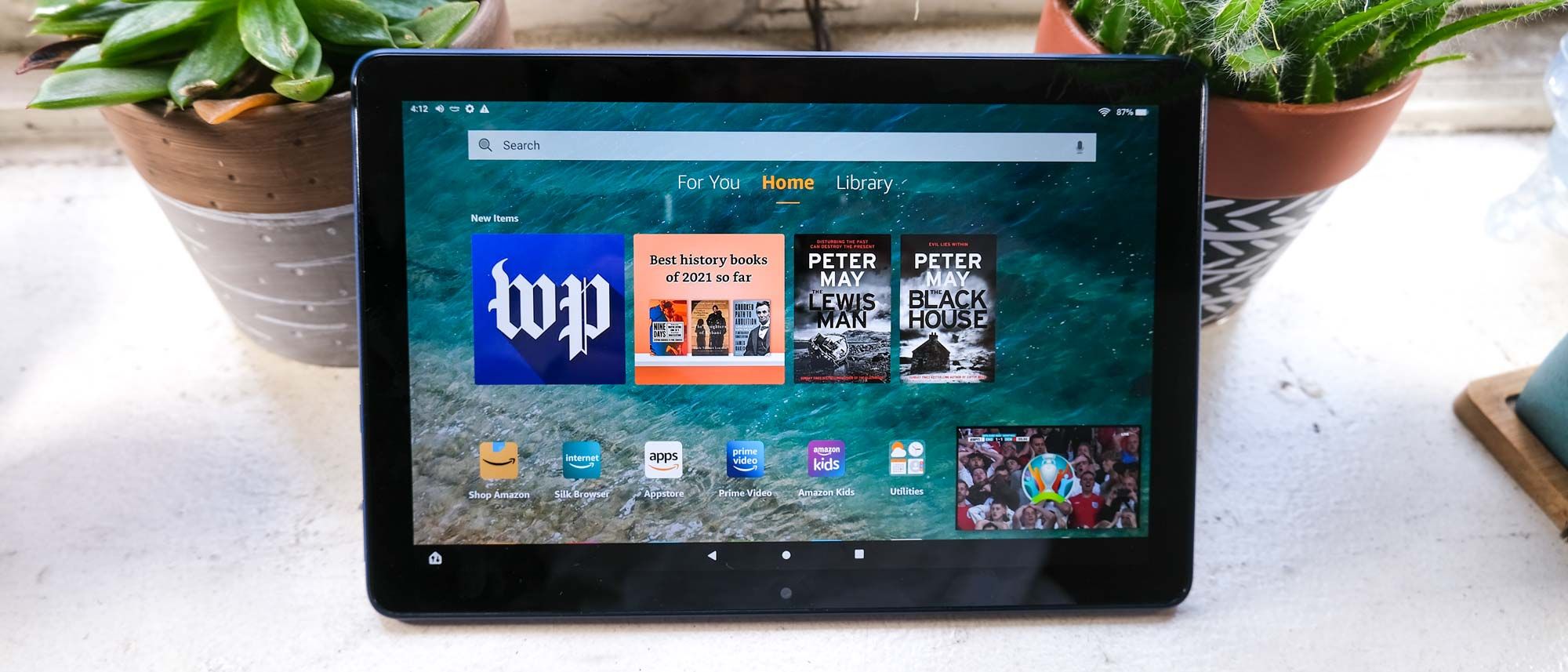
Most affordable senior tablet — Show Mode turns it into an Echo Show, all-day battery.
Key features
Show Mode turns the tablet into a hands-free Echo Show screen
Amazon Kids+ simplification available for senior interfaces
Longest battery life in class — all-day use on one charge
Best for
Budget-conscious seniors who want a simple large-screen tablet for video calls, reading, and streaming. Large display and Alexa built in — no tech learning curve. | A low-pressure first tablet for a parent who has been curious but hesitant. Large screen, familiar Alexa voice control, and a price that makes it an easy yes.
Worth knowing
Slower processor than iPad; less intuitive for some seniors used to Android
10.1-inch screen, built-in Alexa, and a straightforward interface. The most practical tablet for seniors at this price.
Key features
10.1-inch 1080p display — large, clear, and comfortable for reading
Built-in Alexa for hands-free assistance and Show Mode video calls
12-hour battery life — lasts all day without recharging
Best for
Seniors already comfortable with Alexa who want a tablet for video calls, reading, and entertainment. Familiar interface, large screen, and an affordable entry point. | An affordable tech gift that feels familiar from day one — especially for a parent already using an Echo device. Video calls, reading, and entertainment in one tablet.
Worth knowing
Uses Amazon's Fire OS, not Android. App selection is more limited than an iPad. Google apps (Maps, Gmail) are not natively available.
The iPad (standard 10.9-inch or Air) is the most widely recommended for seniors — its interface is intuitive, accessibility features are excellent, and family support is easier because most family members already know iOS. The Amazon Fire HD 10 is a more affordable option for basic use. For seniors with significant cognitive challenges, GrandPad is designed as a fully managed, simplified tablet experience.
Increase text size in Settings > Display & Brightness > Text Size. Enable large text, bold text, and reduce motion in Accessibility settings. Set up the apps they will use most (video calling, photos, streaming) on the home screen and remove everything else. Configure iCloud Family Sharing or a Google Family account to allow remote assistance.
For email, video calling, news, streaming video and music, photo viewing, and light web browsing — yes, a tablet handles these tasks more simply than a computer. For document creation, complex web tasks, or anything requiring a keyboard for extended typing, a tablet with a keyboard case or a laptop remains preferable.
A case with a built-in stand (for hands-free viewing during video calls or streaming) and a comfortable grip reduces hand strain during extended use. Shock-resistant cases are worth the investment — drops are common. For seniors with arthritis, a case with a hand strap on the back significantly reduces grip fatigue during handheld use.